
Step 1: Power Up
🔌
Power Up
Getting the physical connection right is the first step toward precision climbing
- Ensure the Wi-Fi antenna is screwed on firmly before starting
- Plug the power cable into a standard dedicated outlet. Any USB-C power source capable of delivering 20V at 2A minimum will work
- Wait for the projector to display a wifi symbol indicating it is in setup mode
Step 2: Connect to WiFi
📡
Connect to WiFi
Establish a direct link between your device and the LZRvision projector
- Search for and connect to the Wi-Fi network named
laser_prov - Open a web browser and navigate to 192.168.4.1
- Ignore any "No Internet Access" messages — this is expected
Step 3: Configure Device
⚙️
Configure Device
Link the projector to your home network and the Crux ecosystem
- Fill out the entire form (SSID - either select 1 from the list or enter manually, password, Crux API token and Wall ID)
- Get your token from within the Crux app: Profile → Settings → API Authentication → API Key
- Get your Wall ID from: Gym front page → Share icon (paste the entire URL)
- Press Submit and wait to be redirected to the success page
View Reference Screenshots
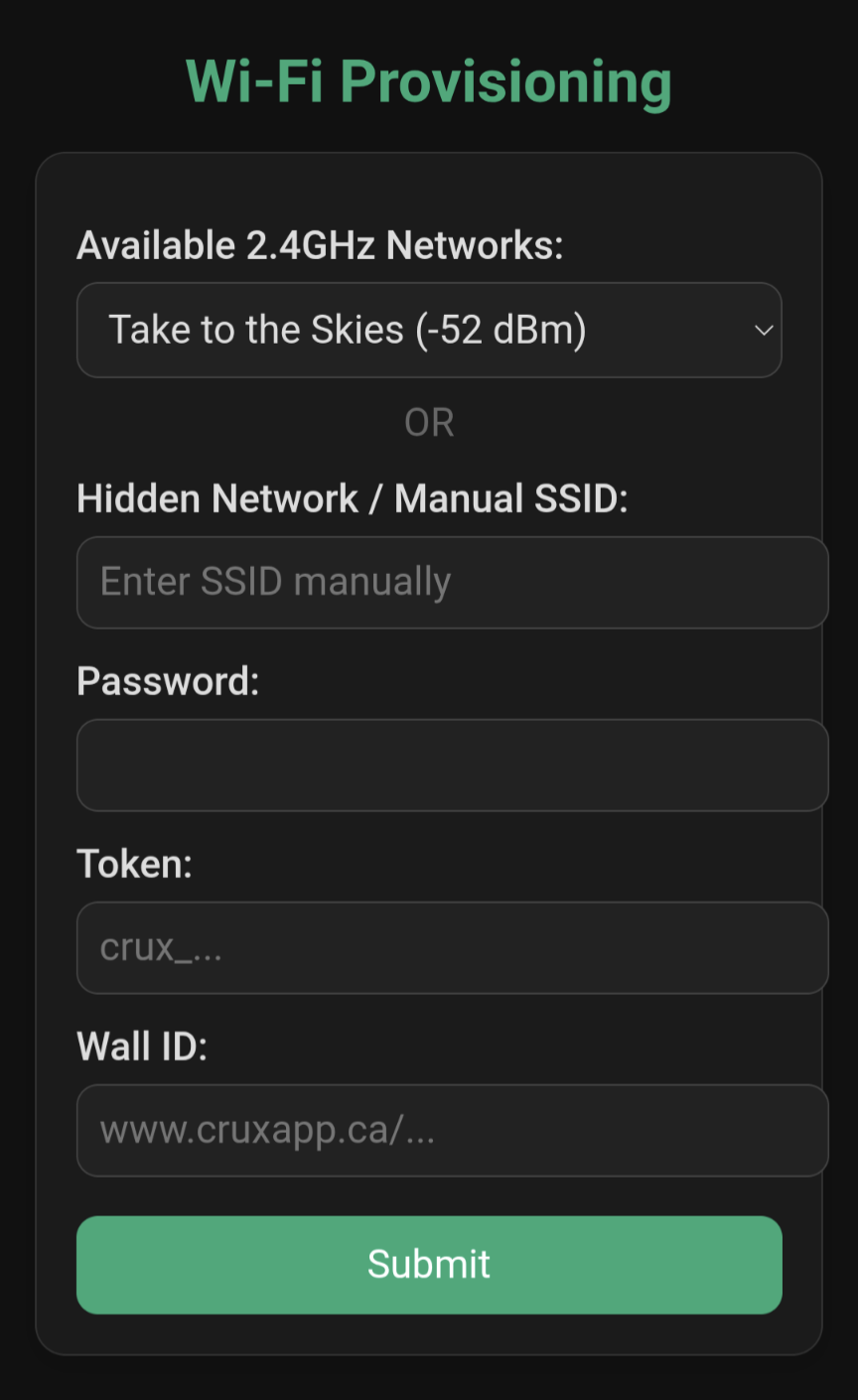
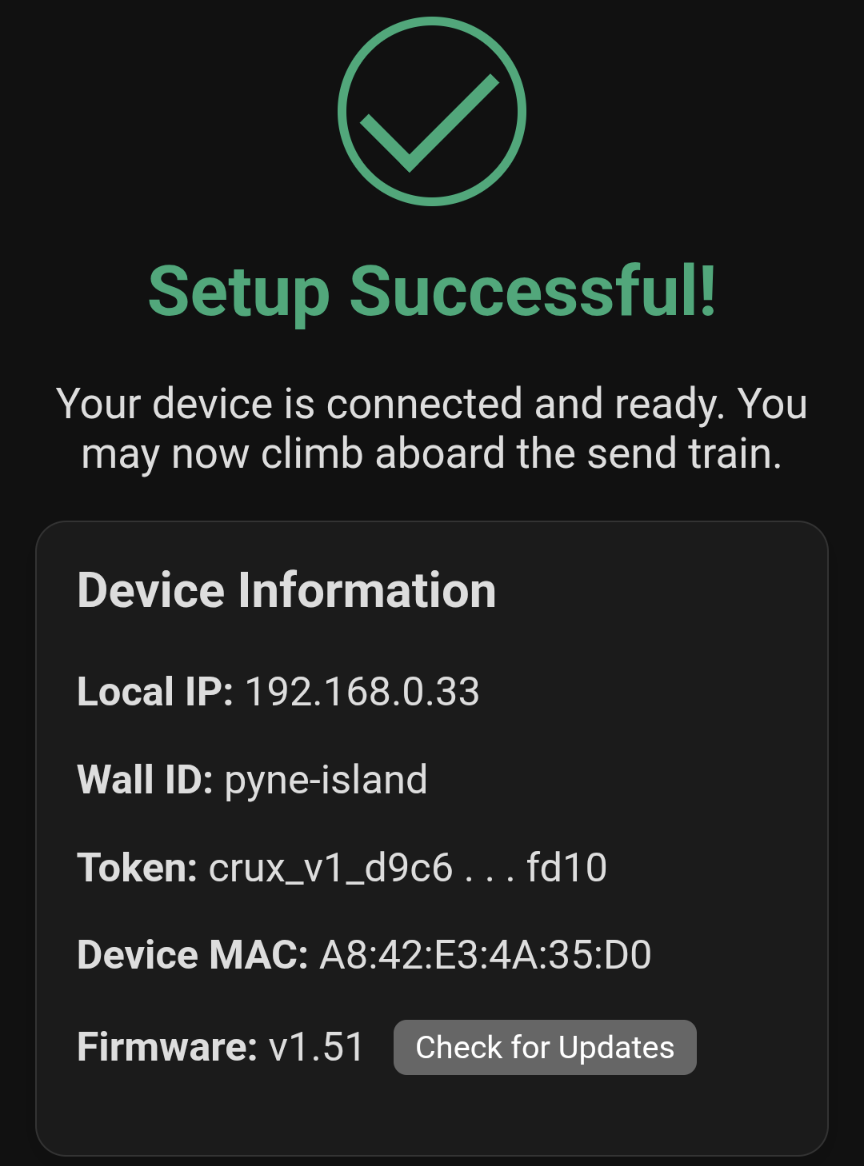
Tip: Save your Crux API token and the Wall ID link somewhere safe before proceeding.
Once the device connects to your home Wi-Fi network, you will temporarily be
unable to access these pages while connected to the setup network.
Step 4: Activate API
🚀
Activate API
Finalize software integration through the Crux app
- In the Crux app: Gym Settings → Gym Webhooks → Enable API Features
Step 5: Final Positioning
🎯
Calibration
Ensure the camera can see your holds clearly
- Mount the projector (ideally on a tripod) to capture the entire wall
- On the configuration page (lzrvision.local), tap "Update Projector Image" or reboot the device once positioned to trigger the baseline scan
- Ensure no movement happens during the initial scanning phase. This can take 20-30 seconds
- Wait for the hourglass to become a checkmark
- Activate climbs and start sending!
You're done! That's everything needed for a standard Crux spray wall. If your gym uses a Moon, Kilter, or Tension systems board, continue to Step 6 below.
Step 6: Systems Boards
📊
Systems Boards
Optional — only applies if you have a Moon, Kilter, or Tension systems board
Show Systems Board Setup
- A Crux account is required. Create a wall that contains either "moon", "kilter" or "tension" in the name
- Enable your systems board on the configuration page
- Open the appropriate app and activate your climb
General Notes
Important information for optimal projector operation
- There is a tripod mount on the bottom of the device for easy positioning. It is highly recommended to use one for optimal results. For reference, the standard tripod thread is US size 1/4-20 if a bolt or alternative attachment method is desired
- It takes ~20 seconds to connect to the server. The first climb, or climbs with different background images, take 15-20 seconds to project. Subsequent climbs on the same wall image take 3-5 seconds
- If the device is moved, it must be re-imaged by tapping "Update Projector Image" or rebooting. Without re-imaging, the projection will be inaccurate
Troubleshooting
Common issues and how to resolve them
- Where do I find the projector setup interface?The projector setup interface can be accessed in a browser on the same network at lzrvision.local. Alternatively, find the device's IP address from your router and go to
http://[device_ip]. If the token or wall ID have been entered incorrectly, use the reset option to restart setup - I am using a corporate or public Wi-Fi network. How do I configure the projector?Unfortunately any public networks with a captive portal (page you get redirected to when connecting, asking for agreement of terms or similar) cannot be used as the device is currently unable to handle such networks. Some business and corporate networks use client isolation, where you are able to connect with a password as normal, and the projector works, but you will not be able to access its configuration page. In this case, a simplified configuration editor can be accessed via the below Device Config button (the MAC address of your device can be found on the device label)
- Where did the Wi-Fi configuration page go?The wi-fi configuration page is only available when the projector cannot connect to wifi. The wifi antenna can be temporarily removed to re-enter setup mode
- I finished setup but it is still projecting a Wi-Fi symbol, what do I do?If it projects a Wi-Fi symbol after startup, check for the
laser_provWi-Fi network. If it exists, the device failed to connect. Check Wi-Fi SSID and password. The network needs to be 2.4GHz; most home networks are both 5GHz and 2.4GHz, which works fine - After activating a climb, the projector eventually projects an "X", what is the problem?If it projects an X when trying to project a climb, it cannot match the wall picture with that in Crux. Make sure you are projecting a climb that the projector can "see"